
If you've lost access to your Google Authenticator, you can regain access using Backup Codes or by contacting Support.
When you first enabled Google Authenticator, you were provided with Backup Codes. If you saved them, you can use one to access your account.
Go to the login page.
Enter your email and password.
When prompted for your Google Authenticator code, click Security feature not available.
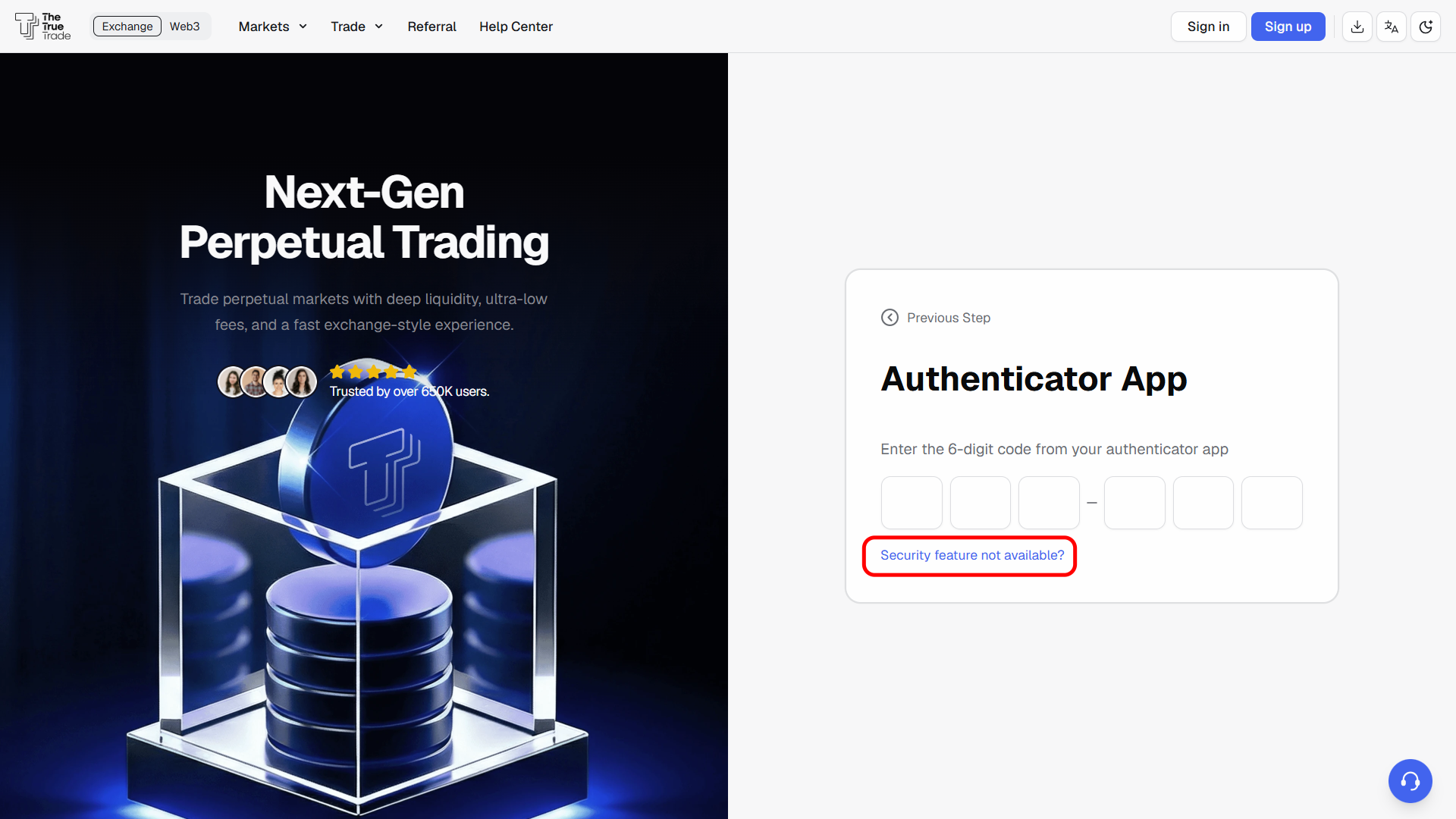
Enter one of your unused Backup Codes.
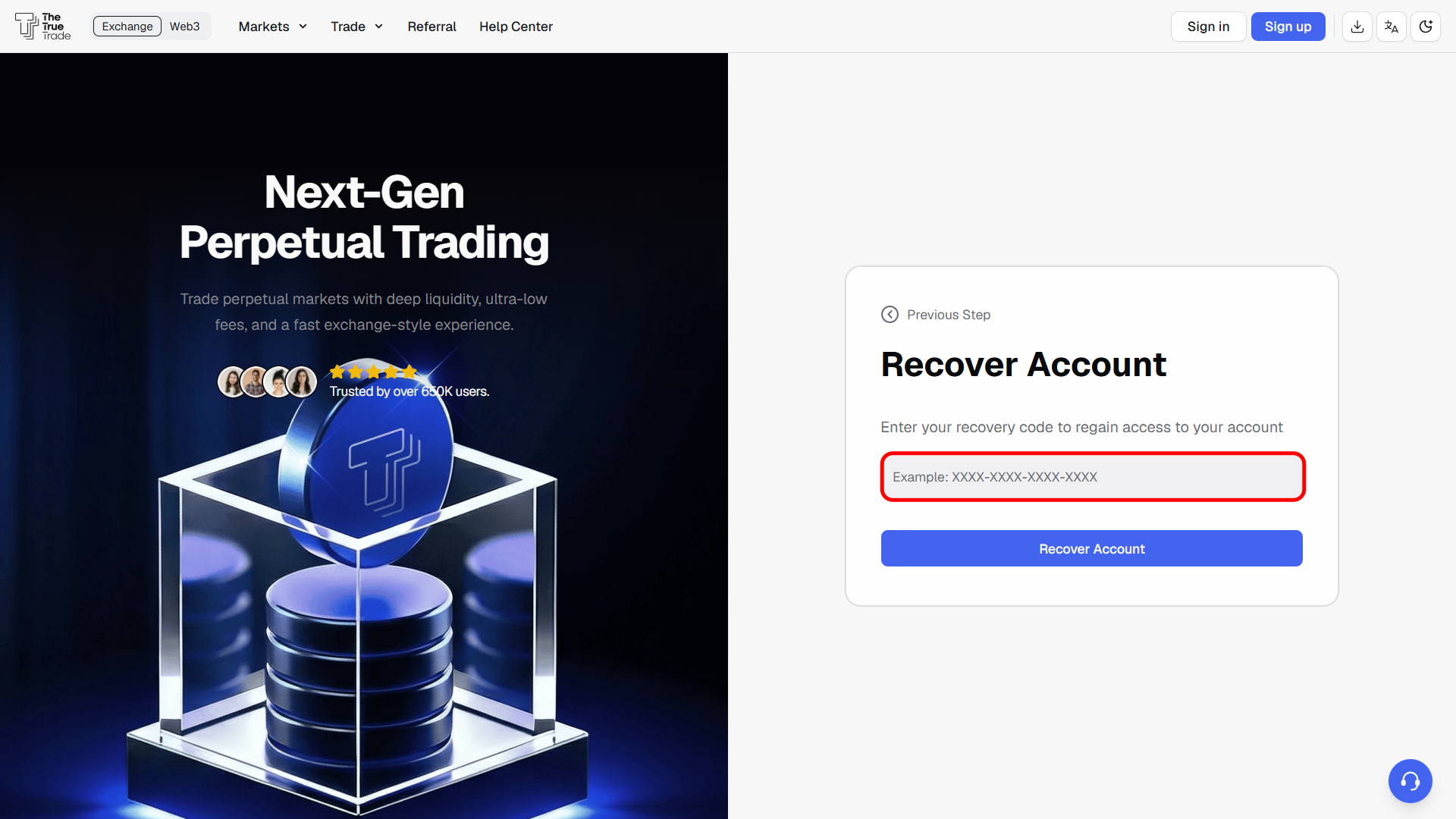
Once verified, you'll be logged in to your account.
Note: Each Backup Code can only be used once.
After logging in with a Backup Code, Google Authenticator is still enabled. If you log out, you'll be asked for a 2FA code again.
To remove it:
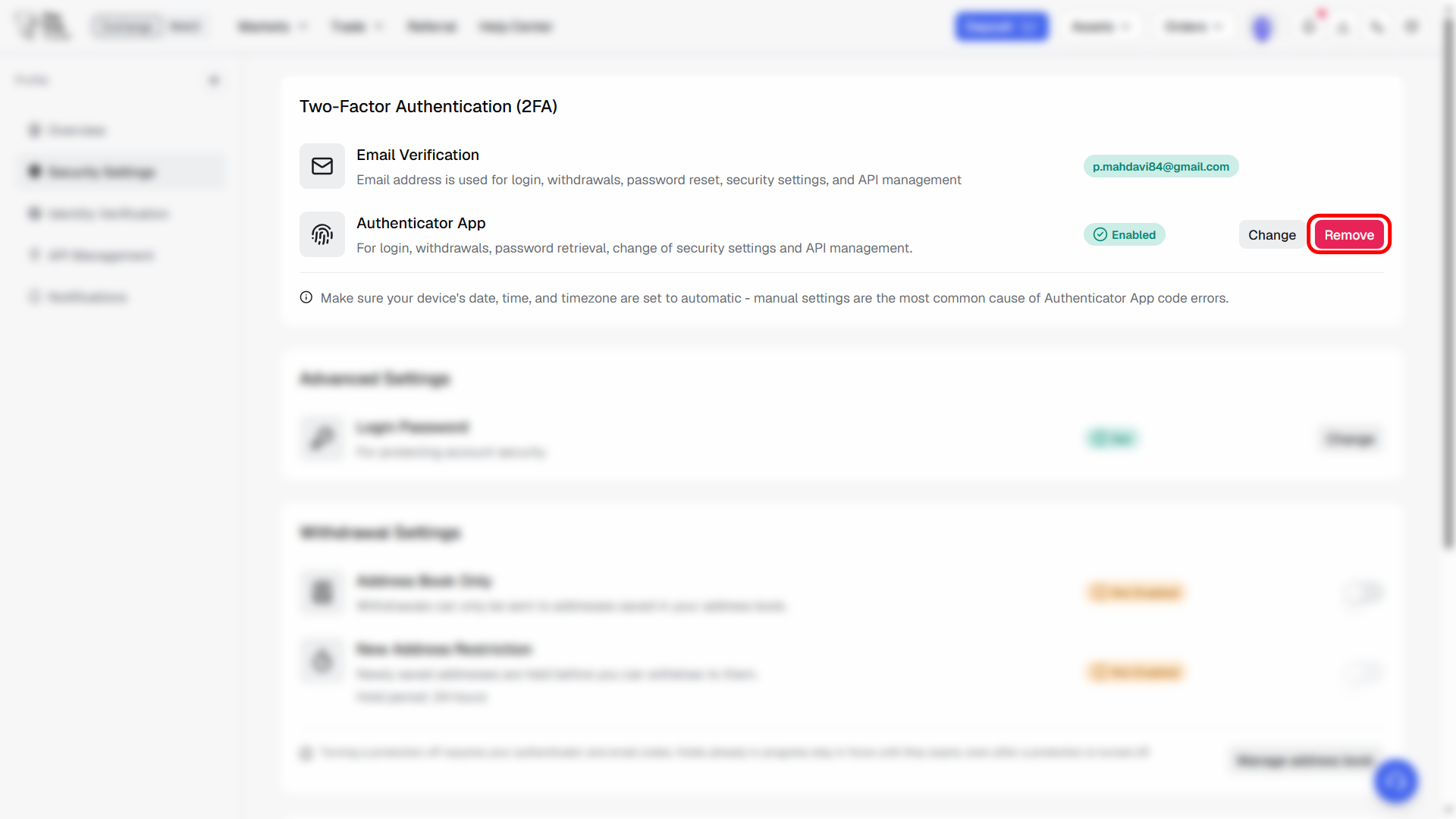
Go to Profile → Security Settings → Authenticator App.
Click Remove.
Select Security feature not available.
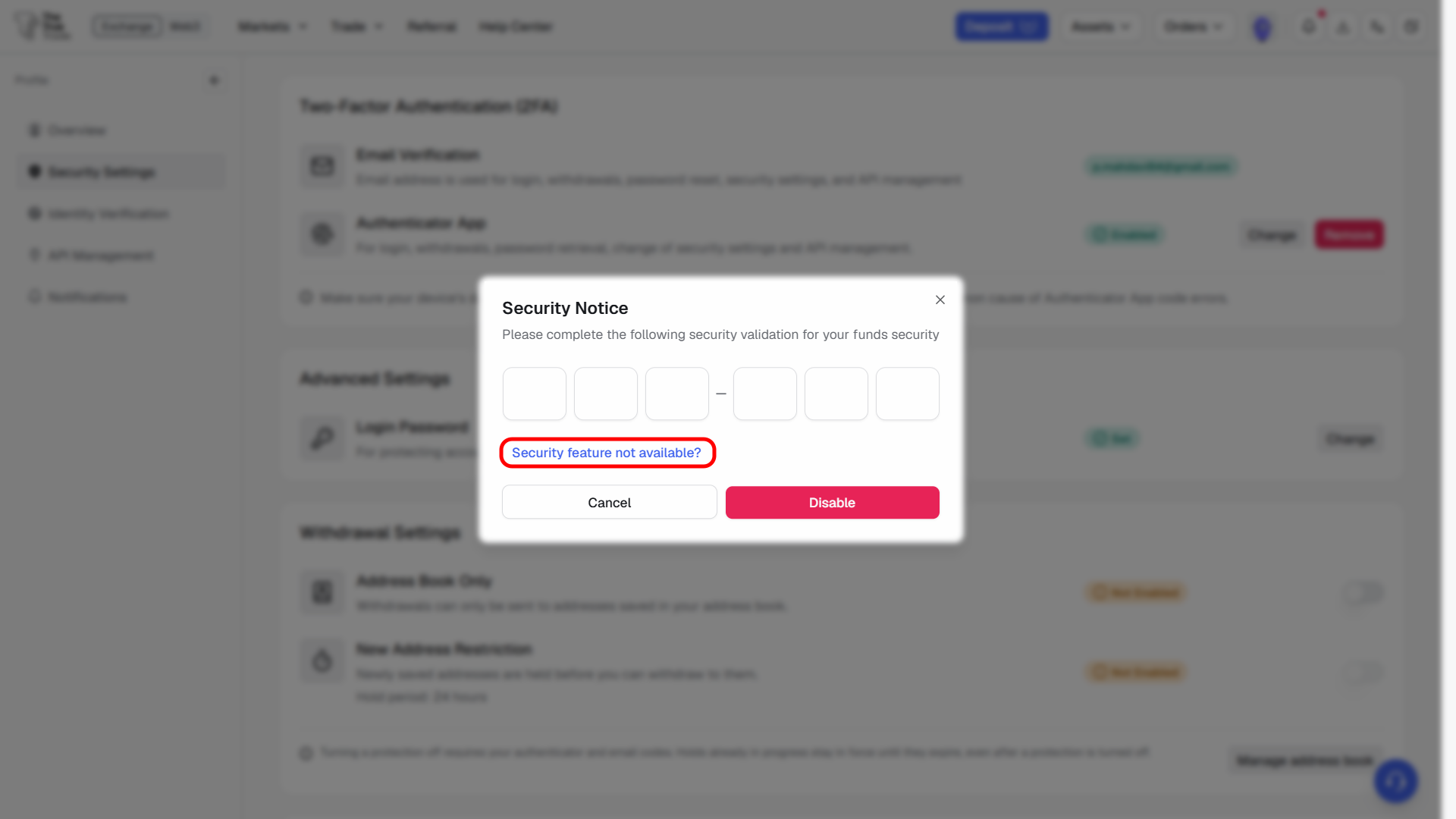
Enter another unused Backup Code.
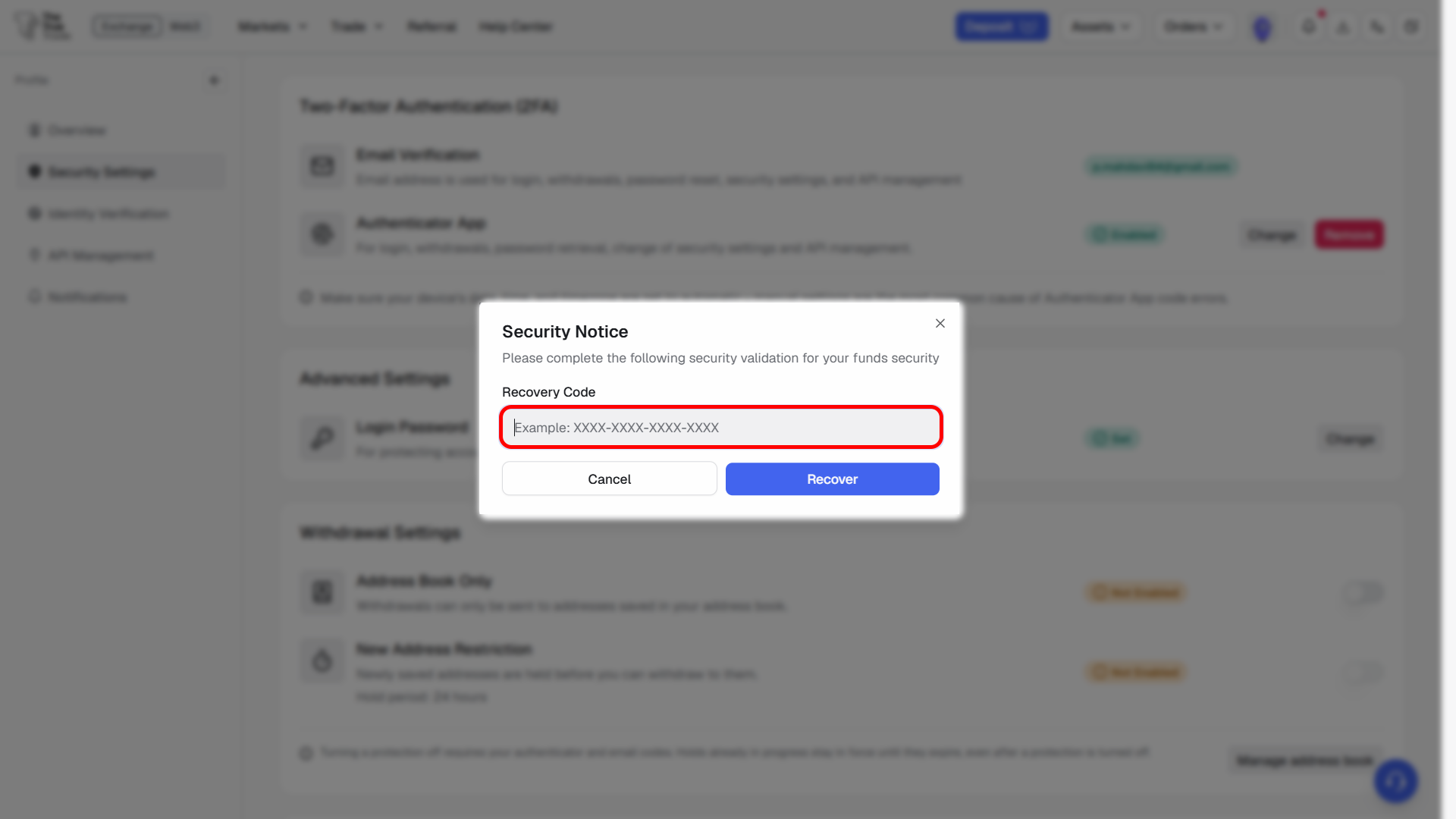
Google Authenticator will now be removed from your account.
You can then set up a new Google Authenticator on a device you have access to.
Note: Google Authenticator is required for withdrawals. We recommend enabling it again as soon as possible after removal. Guide link
If you don't have your Backup Codes, our Support team can help.
Email us from the email address registered to your TheTrueTrade account at:
Request the removal of Google Authenticator from your account.
To help verify account ownership, include as much of the following information as possible:
Account UID
Registered email address
Telegram username
Wallet address
Account registration region
Currency and amount of your most recent deposit
Time and amount of your most recent withdrawal
Note: You do not need to provide every item. Simply include as much information as you have available.
Once your request has been reviewed and your identity has been verified, our Support team will remove Google Authenticator from your account. You can then log in and set up a new authentication device.

